Install IPTV on your Amazon Fire TV Stick (Krooz TV app)
Maximize streaming performance with StreamSmartersPro. This guide has been refined for speed, clarity, and practical steps to help you set up fast and reliably.

Amazon Store does not host Krooz TV app. Therefore, if you want it on your Fire TV Stick, you will need to sideload it.
To sideload any app on your device, you should have the option Apps from Unknown Sources enabled or turned on. So, let’s take care of this part first before we install KroozTV app on FireStick:
- On the home screen of your FireStick, you will find the menu bar on the top. In the menu bar, select Settings.

- In the Settings, choose the option My Fire TV.

- When the following set of options are displayed on the next screen, click Developer Options.

- Now, you need to check whether Apps from Unknown Sources is OFF or ON. Click it once if it is OFF.

- A quick warning message is displayed. To keep Apps from Unknown Sources switched on, click Turn on.

With this, you have configured the FireStick settings to allow the installation of Krooz TV app and other third-party apps. Follow the steps below:
Step 1
We will first install the Downloader app. This app will help you sideload IPTV Smarter on FireStick (because browser downloads are not allowed).
Step 2
Highlight the Search option on the home screen of FireStick. Type the name of the app (which is Downloader). Click the Downloader option when it is displayed in the search results. Choose the Downloader icon on the following screen and download and install the app.

Step 3
You may now open the Downloader app. When you run this app for the first time, a set of prompts will appear. Dismiss them until you see the following screen. On this screen, you need to click the URL textbox on the right side (make sure the Home option in the left menu is selected) where it says ‘http://’.

Step 4
Go ahead and Type the short Code of the Krooz App : 504969
or type the following path on this window: https://t.ly/ItWHC
Taking into account the uppercase and lowercase letters as they are.
Click GO.
Step 5
Give it a minute or two until the Krooz TV app is downloaded onto your FireStick device.

Step 6
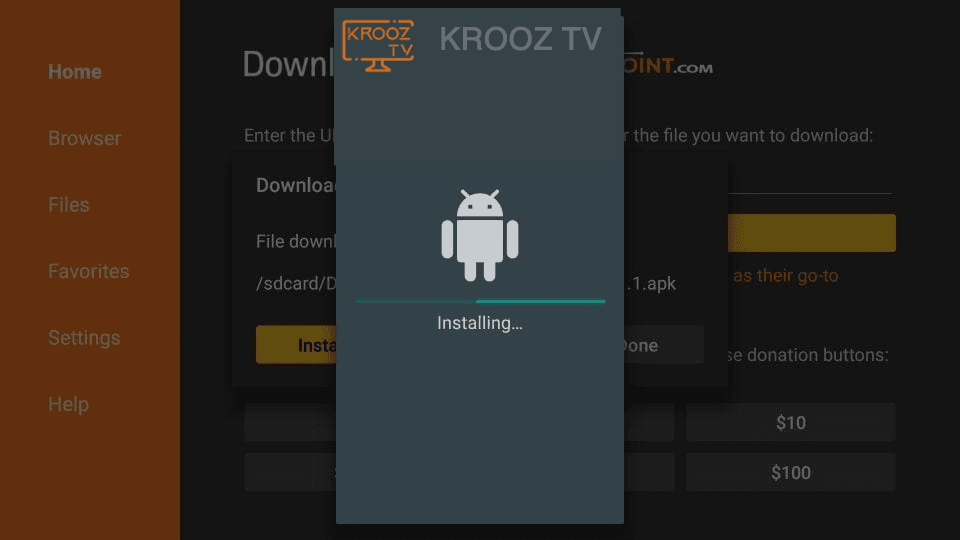
When the download has completed, the Downloader app will run the APK file and the installation will start. Click Install.

Step 7
Wait for the installation to finish.

Step 8
Installation is concluded with the App installed notification. You may now choose to click OPEN and get started with KROOZ TV app. I recommend choosing DONE so that you may first delete the APK file and save some space on the FireStick storage.

Step 9
If you clicked DONE above, you will be back on the Downloader interface. Click Delete.

Step 10
Again, click Delete.

Great! You now have the KROOZ TV app on FireStick. When you run the KROOZ TV app for the first time, Terms of Use will be the first window. Scroll down and click Accept.
You can add IPTV channels to KROOZ TV: Enter Your Username and password. EPG Installed automatically.